Casting - ScreenBeam
Apple/Mac
- Connect to PAL3.0 Wi-Fi on your Apple Device
- Go to the command center in the top right corner of your laptop screen, or swipe down in the top right on your ios device.
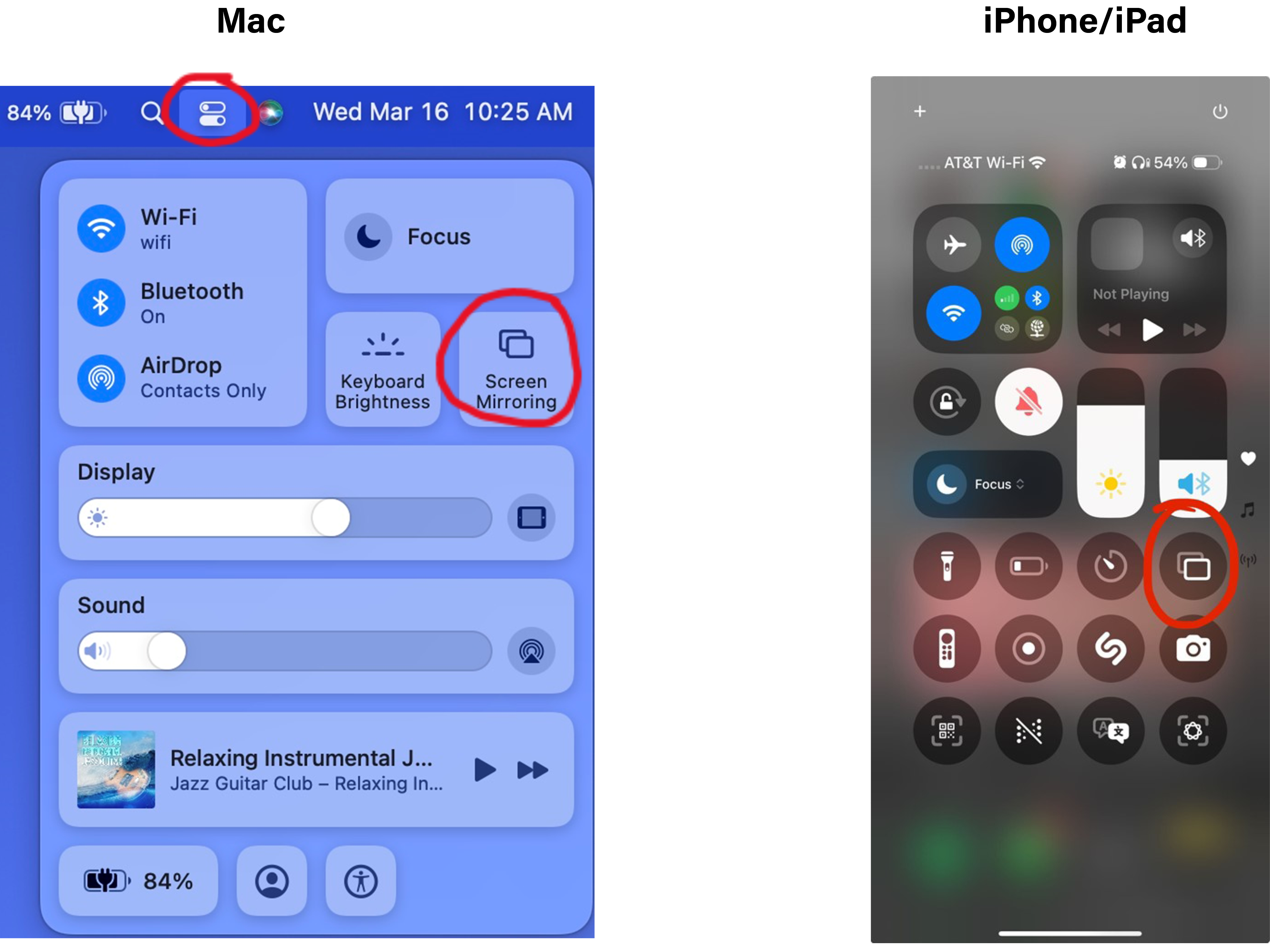
- Select “Screen Mirroring” and choose the device with the same name as the room (LILY X-XXX).
- When prompted, enter the code that will be displayed on the TV screen.
- To disconnect, go back to the screen mirroring page (Step 2) and select disconnect.
How to Change Inputs
- On the TV remote, Press the home button.
- When on the home screen, press left on the remote until a menu pops out from the side.
- Scroll down and select Connected Devices.
- Scroll right and select either Desktop, or ScreenBeam.
ScreenBeam Connection Instructions
Windows
- On your Windows Laptop, press Windows Key+K on your keyboard.
- Select the device with the same name as the room(LILY X-XXX).
- Enter the code displayed on screen when prompted.
- To disconnect, press Windows Key+K, then press disconnect.
*If you do not see the device when you press Windows Key+K, then your laptop is not compatible with the room’s equipment.